TikTok safety features: how creators stay safe from online trolls

TikTok gives creators nine built-in safety features to keep trolls out: comment filters, content preferences, screen-time controls, restricted mode, mention and tag limits, Duet and Stitch limits, blocking, reporting, and filtered direct messages.
If you create on TikTok, you will meet trolls eventually: the users who flood comments with abuse, fire off cruel DMs, and bait you into hostile exchanges. The good news: you don’t have to absorb it. TikTok’s safety settings let you decide who can comment, who can contact you, and what content reaches you in the first place. This guide walks through all nine, with the exact steps to switch each one on.
The short version:
- The comment section is where most trolling happens. Filters and approval controls are your first line of defence.
- DMs are restricted by default; tighten them further so strangers can’t reach you at all.
- Blocking, reporting, and restricted mode handle the accounts and content that filters miss.
- Mention, tag, Duet and Stitch limits stop trolls from dragging your content into their own.
A quick refresher first. Online trolls are users who set out to bully others: offensive comments, unsolicited and abusive DMs, deliberate attempts to provoke. Creators in the spotlight are especially exposed to it, and plenty will tell you how badly it has affected them. Platforms like TikTok have a duty of care to their users, and that’s where these controls come in.
What are TikTok’s 9 safety features for creators?
1. How do TikTok comment filters work?
The comment section is a troll’s weapon of choice. Nasty comments can leave you feeling exposed and unsafe, especially when they target a sensitive topic or an insecurity.
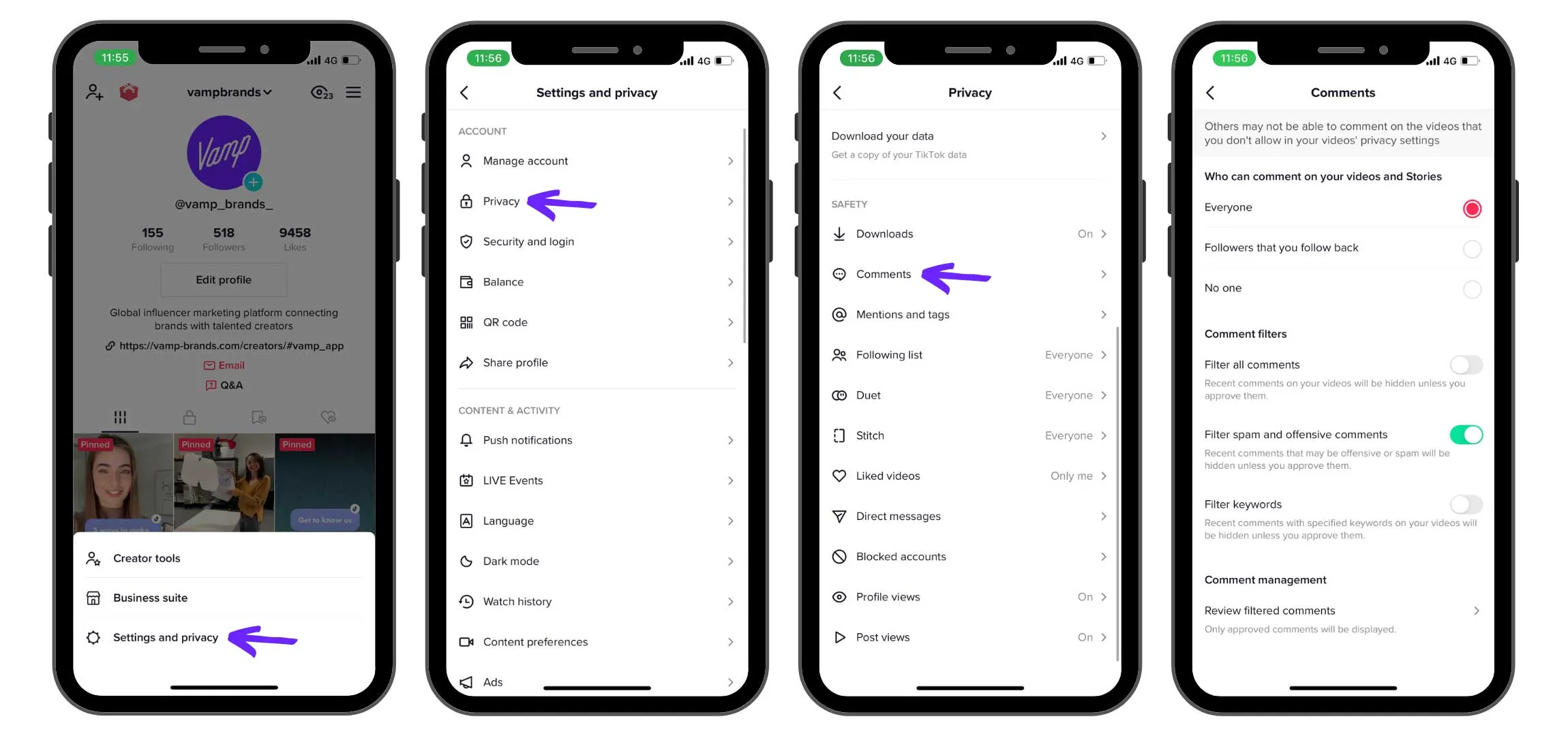
Comment filters give you back control over who gets to speak under your videos. You can allow comments from everyone, only people who follow you back, or no one at all. You can also filter out offensive comments and specific keywords: if someone uses one of your blocked words, TikTok removes the comment automatically, so neither you nor your audience ever sees it.
There’s also a comment-approval option, where only the comments you personally approve appear. It takes more time, but it’s a strong choice if your videos keep landing in front of the wrong people.
To set comment filters:
- Open TikTok and go to your Profile
- Tap the menu (the three lines) in the top right and open Settings and privacy
- Tap Privacy
- Tap Comments
- Adjust your comment filters and keyword settings on this page
2. How do you filter unwanted content with content preferences?
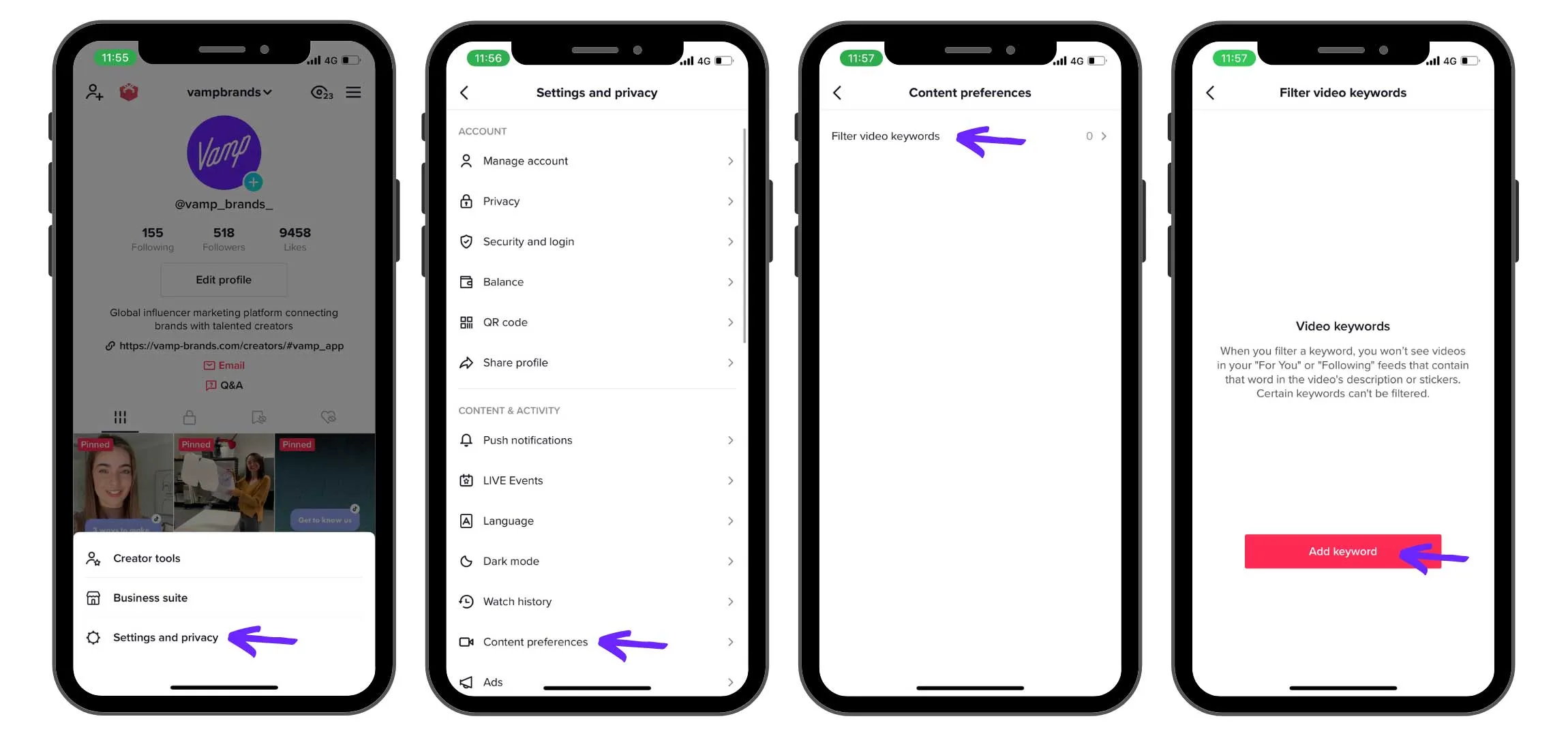
If you want certain content kept out of your Following and For You feeds, content preferences let you do it. Add video keywords or hashtags, say “diet” or #diet, and TikTok filters out videos that use those terms in the description, caption, or stickers, keeping content you find harmful or upsetting off your feed.
You can add as many keywords as you like, though TikTok notes that some keywords can’t be filtered.
To set content preferences:
- Open TikTok and go to your Profile
- Tap the menu in the top right and open Settings and privacy
- Tap Content preferences
- Tap Filter video keywords
- Tap Add keyword and build your list
3. How does screen-time management protect you?
This one is for anyone who loses an hour to aimless scrolling, which, let’s be honest, is most of us. TikTok’s videos are short and built to keep you watching, so it’s easy to get stuck in the loop.
Screen-time management lets you track your time in the app and set breaks, so you can step away before you fall down the rabbit hole. Beyond healthier, more mindful use, less time scrolling also means fewer chances of running into a troll in the first place.
To manage your screen time:
- Open TikTok and go to your Profile
- Tap the menu in the top right and open Settings and privacy
- Tap Screen time
- Set your daily limits, breaks and reminders from this page
4. What does restricted mode do?
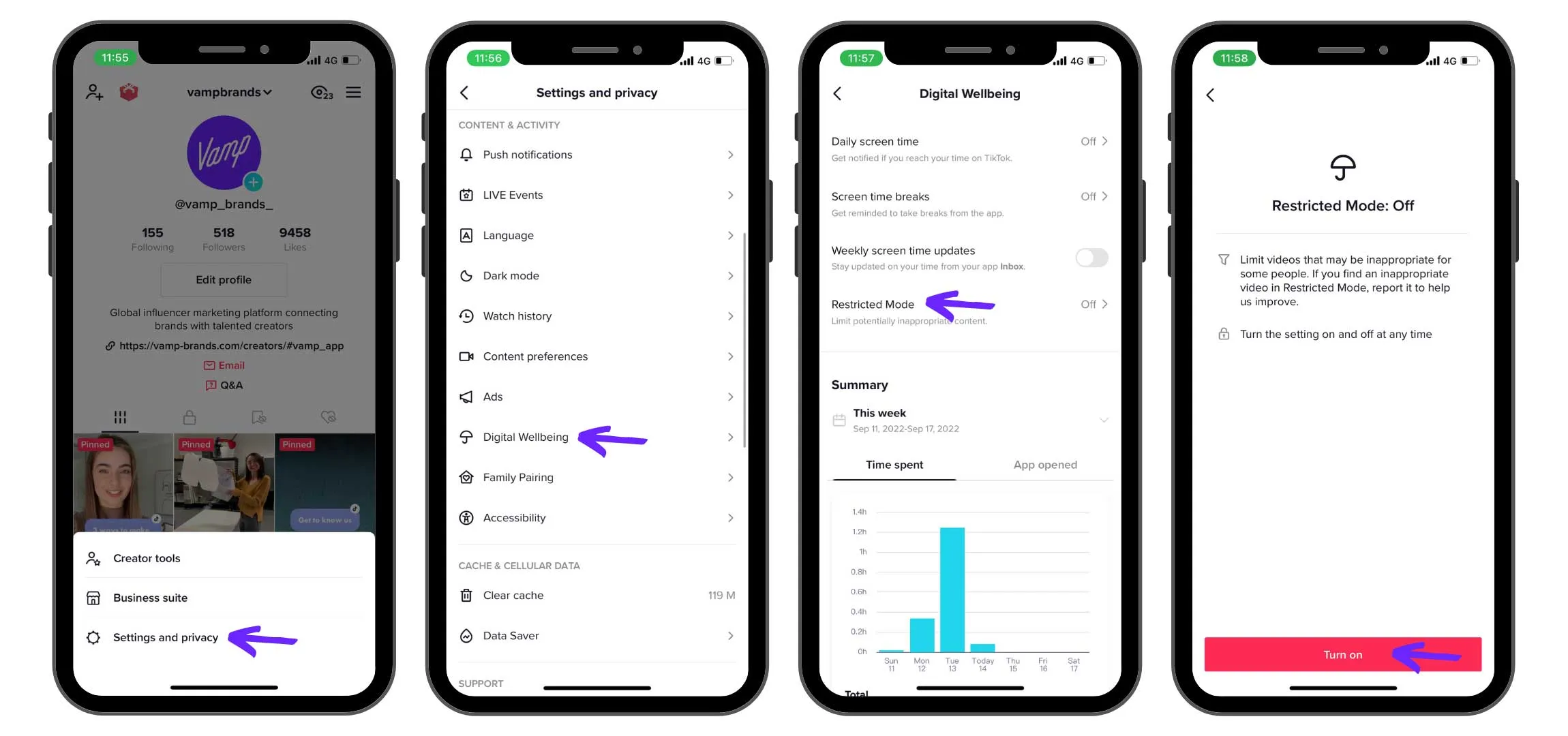
Restricted mode limits content that may not be suitable for all audiences, filtering out mature themes and age-sensitive material. It’s a sensible setting for younger users, or for anyone who wants to keep up with trends and brands without being exposed to content they’d rather avoid.
In TikTok’s own words:
“Restricted Mode is an option at the account settings level that limits the appearance of content that may not be appropriate for all audiences.”
To turn on restricted mode:
- Open TikTok and go to your Profile
- Tap the menu in the top right and open Settings and privacy
- Tap Content preferences
- Tap Restricted Mode
- Tap Turn on Restricted Mode
5. How do you control who can mention and tag you?
Tags and mentions are a good way to connect and collaborate, but trolls can weaponise them too. If you feel you’re being mentioned or tagged in a way meant to harm you, you can decide who’s allowed to do it and cut off unwanted connections.
You can also set things so no one can mention you without your consent. It’s another way to keep negativity in check and put control back in your hands.
To set mention and tag controls:
- Open TikTok and go to your Profile
- Tap the menu in the top right and open Settings and privacy
- Tap Privacy
- Tap Mentions and tags
- Set your mention and tag permissions on this page
6. How do Duet and Stitch limits keep your content yours?
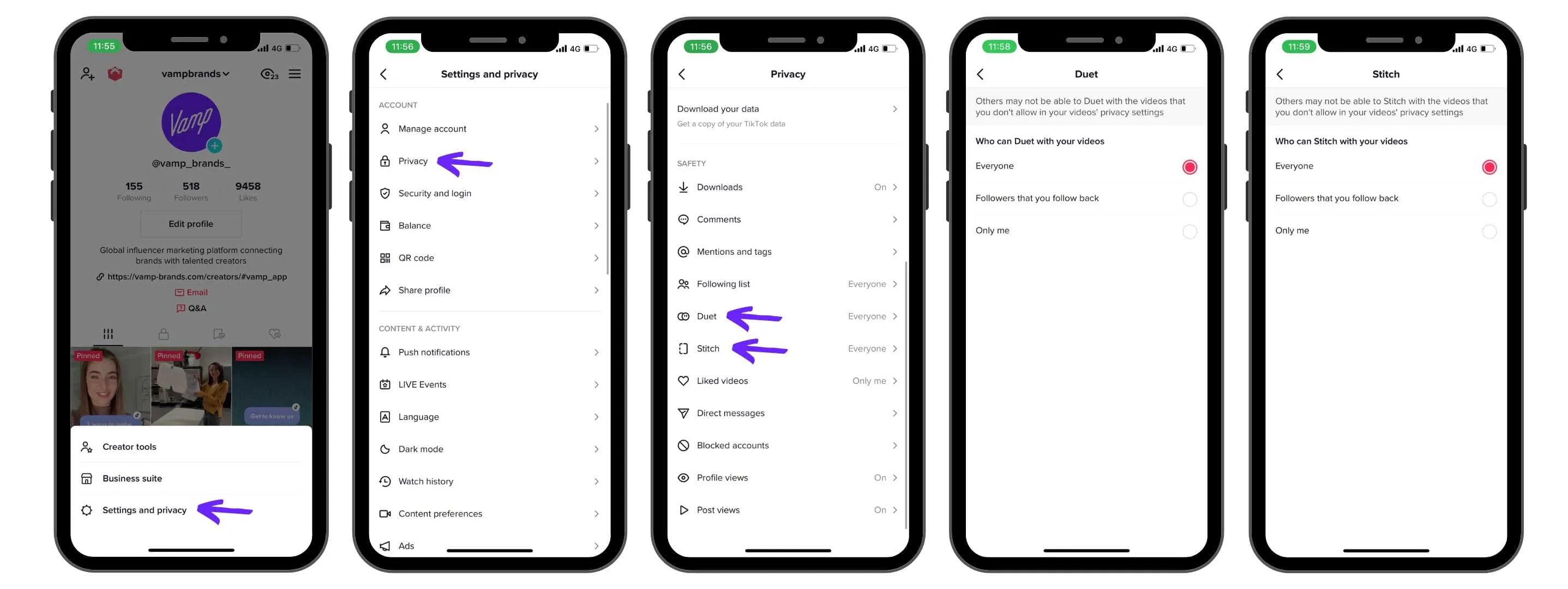
Duet and Stitch let people build on your videos, great for collaboration, less great when someone uses them to mock or harass you. You can choose who’s allowed to Duet or Stitch your content: everyone, only people you follow back, or no one.
It’s an extra layer of control over who gets to repurpose your videos.
To set Duet and Stitch limits:
- Open TikTok and go to your Profile
- Tap the menu in the top right and open Settings and privacy
- Tap Privacy
- Tap Duet or Stitch, depending on what you want to change
7. When should you block someone on TikTok?
For many creators, Duet and Stitch are a useful way to start conversations and reach new audiences, so switching them off entirely because of a few bad actors isn’t always the answer. Blocking is the more targeted fix.
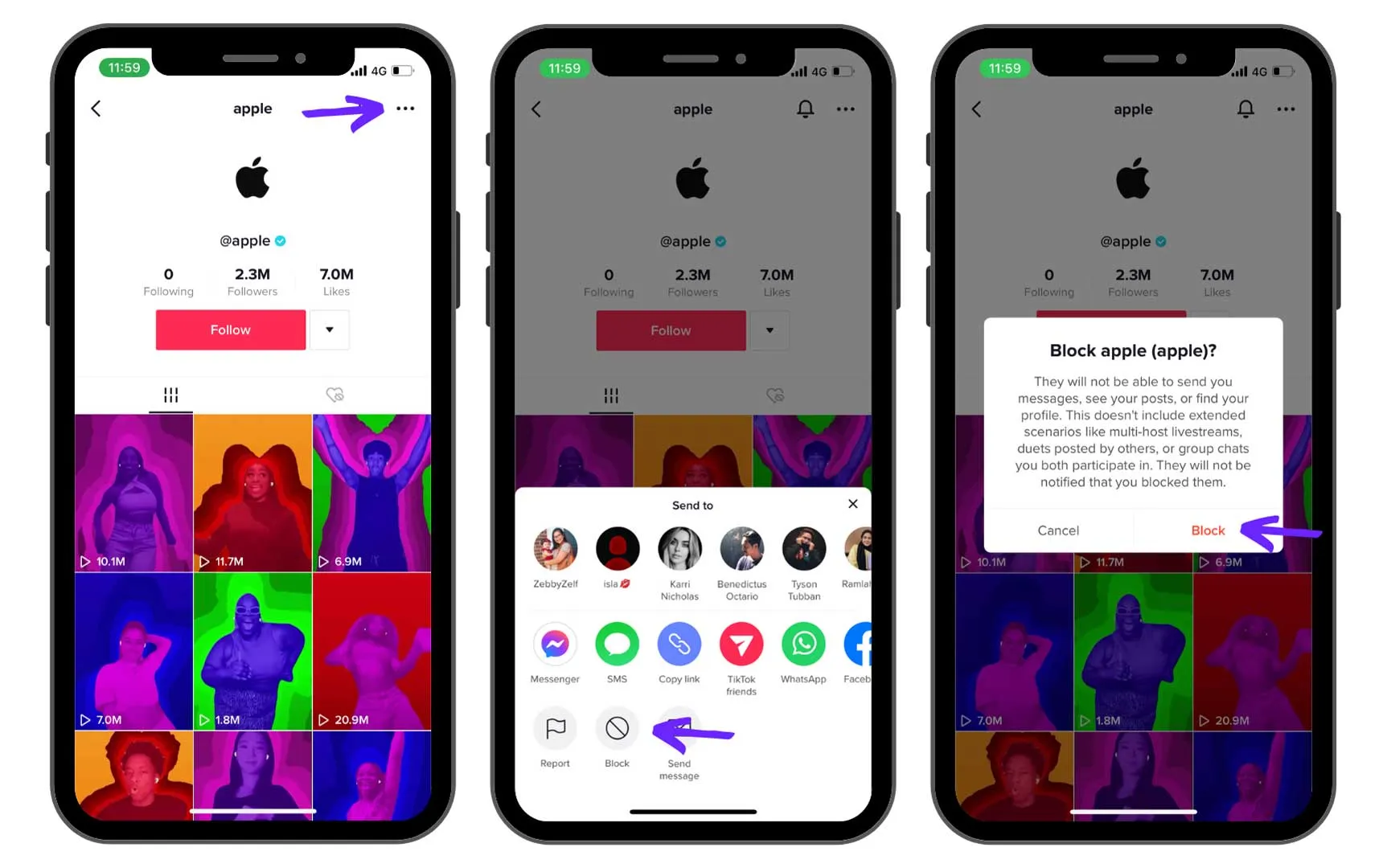
When you block an account, that user can no longer view, comment on, or engage with your content or profile in any way.
To block an account:
- Open TikTok and go to the account’s profile
- Tap the three dots in the top right
- Tap Block, read TikTok’s message, then confirm Block
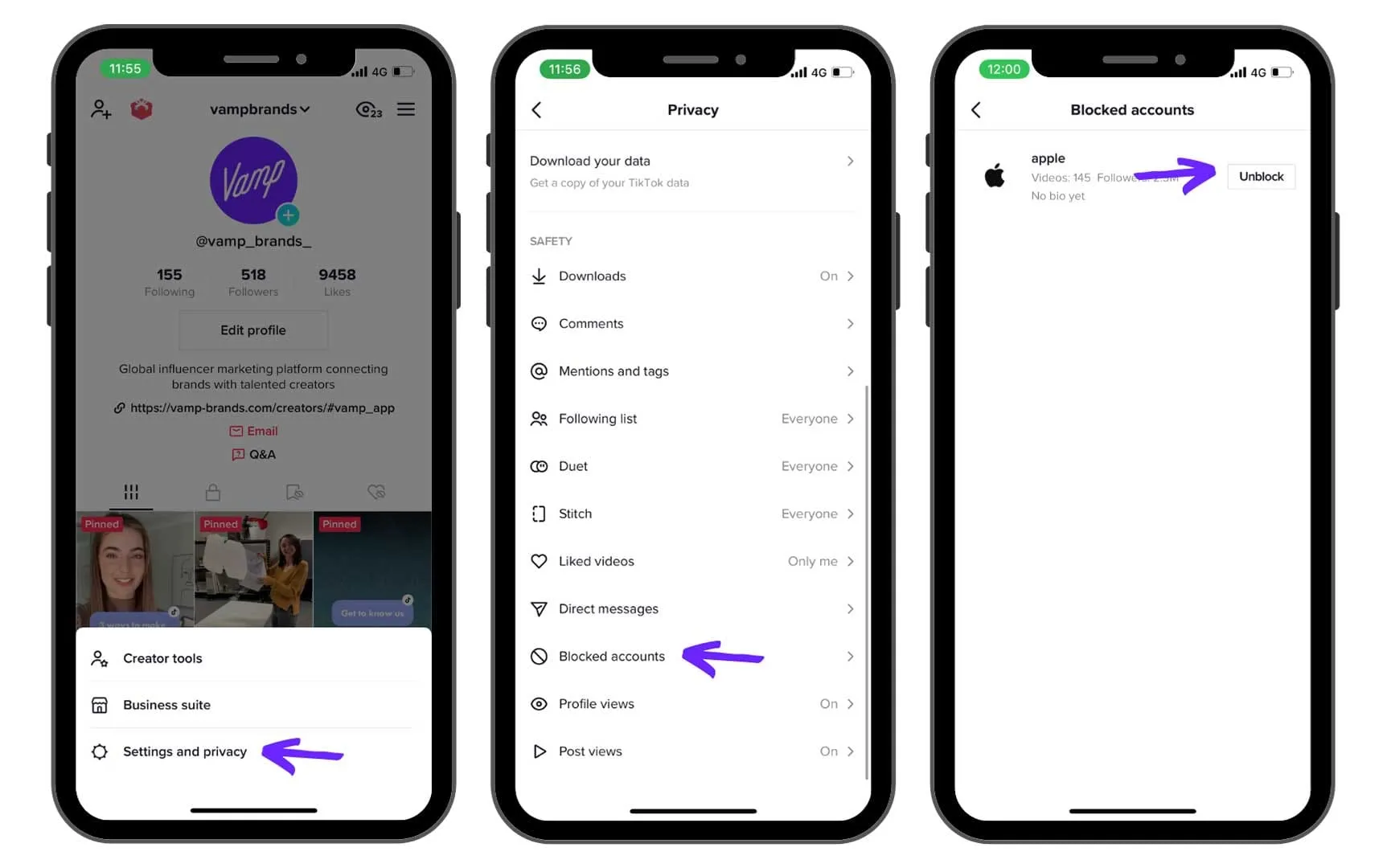
- To unblock later, go to Settings and privacy › Privacy › Blocked accounts
8. How do you report content that breaks the rules?
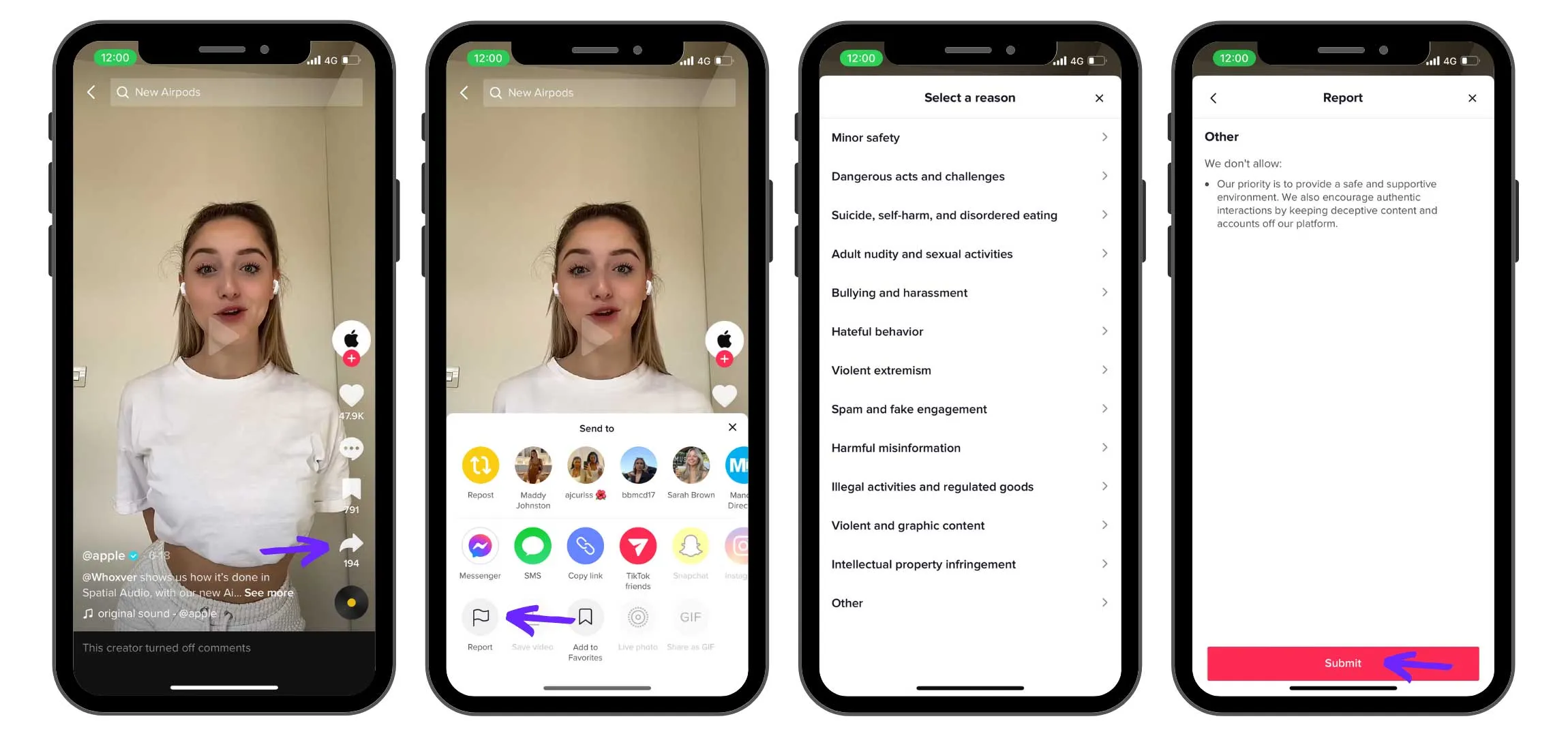
TikTok’s reporting is solid. When a video is reported and TikTok decides it breaches its Community Guidelines, it usually comes down quickly. The report form lets you explain exactly what’s wrong, so you feel heard when you flag something offensive or harmful, and it puts the decision about what’s appropriate for you and your community back in your hands.
To report a post:
- Tap Share on the post (under the Save button on the right of the video)
- Tap Report, choose a reason, and submit
9. How do filtered direct messages stop spam and abuse?
TikTok’s DM controls are strong by default. When you first create an account, people you don’t follow back can’t message you at all, so not just anyone can flood your inbox with offensive or inappropriate DMs.
You can tighten this further so no one can DM you, giving you even more control over who reaches you and keeping unwanted attention to a minimum.
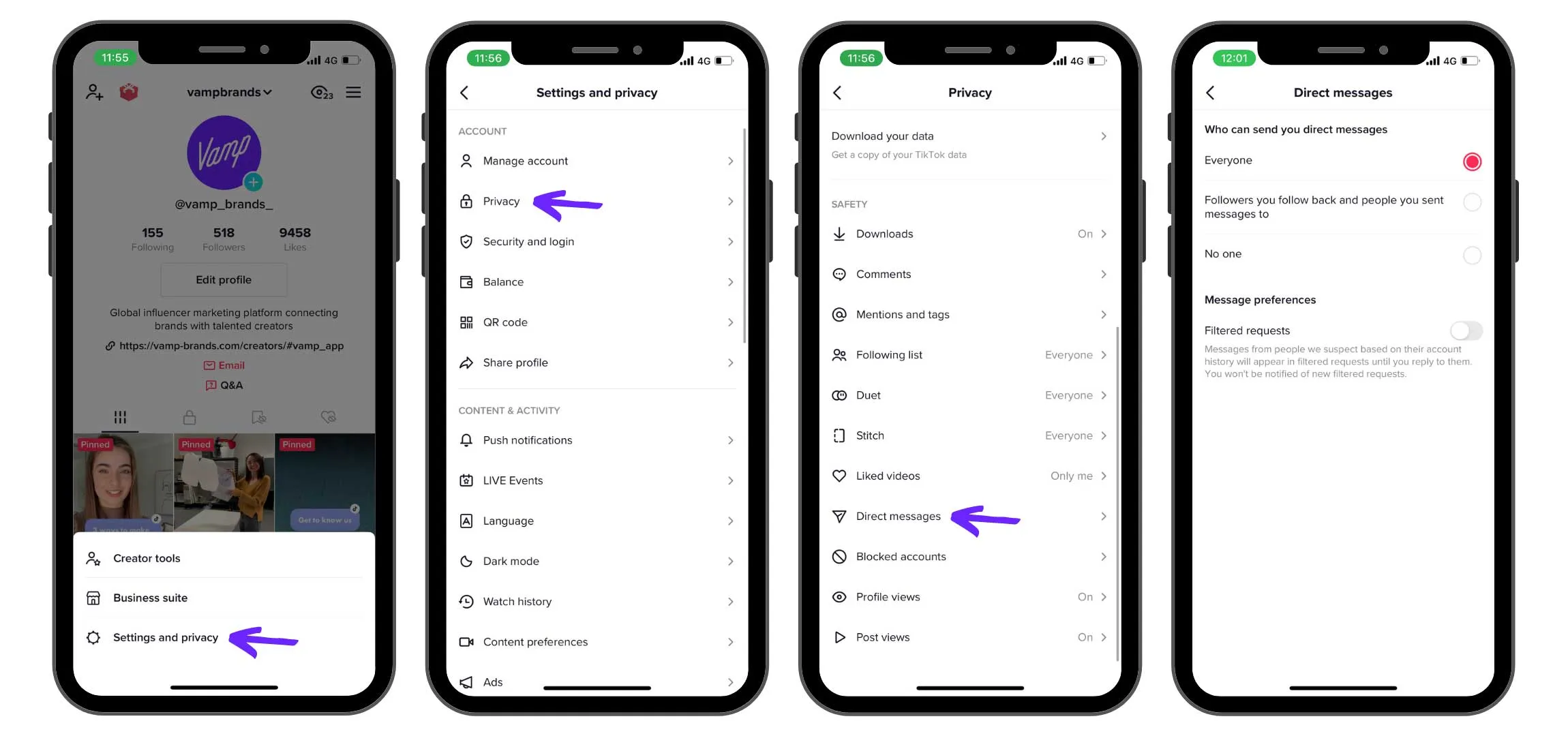
To filter your direct messages:
- Open TikTok and go to your Profile
- Tap the menu in the top right and open Settings and privacy
- Tap Privacy
- Tap Direct messages
- Set who can message you on this page
FAQs
Can you stop trolls from commenting on your TikToks?
Yes. Use comment filters to restrict comments to followers or to no one, block offensive keywords so flagged comments are hidden automatically, or switch on comment approval so only comments you’ve vetted appear. For repeat offenders, block the account outright.
Will TikTok tell someone you blocked or reported them?
No. TikTok doesn’t notify a user when you block or report them. Blocking simply removes their ability to find or interact with you; reporting is reviewed privately against the Community Guidelines.
Can strangers DM you on TikTok?
By default, no. Only accounts you follow back can message you. You can tighten this so no one can DM you, or relax it, in Settings and privacy › Privacy › Direct messages.
Safety is the floor. A sustainable creator career is built on top of it
Knowing these controls is non-negotiable. Trolls aren’t a sign you’re doing something wrong, they tend to show up precisely when your reach grows, and managing them is part of the job now. Lock down your comments, your DMs and your mentions, and you protect both your peace of mind and the community you’re building.
But safety is the floor, not the ceiling. The creators who last treat their account as an asset to be protected and grown: clear boundaries, a consistent voice, and partnerships that respect both. At Vamp, we build the systems that connect creators with brands who get that, because influence only compounds when the people behind it are looked after.
Create on Instagram too? Here are all the Instagram features available to keep you safe from online trolls.