Instagram safety features to protect creators from online trolls
Content warning: this article references self-injury.
Instagram has 14 built-in safety features creators can use to protect themselves from online trolls, from hidden words and comment limits to restrict, block and content advisory warnings.
Used together, they let you stay public, keep growing, and keep collaborating with brands without absorbing the abuse that visibility can attract. This guide walks through each Instagram safety feature, what it does, and exactly where to find it.
Trolls are users who set out to bully others online: offensive comments, uncalled-for DMs, deliberate provocation. Creators are disproportionately exposed to it, and the cost is real. Sustained trolling is linked to declining mental health, disrupted sleep, and lowered self-esteem. Instagram has publicly committed to protecting people from bullying on the platform, and has shipped a serious set of controls to back it up. Here’s how to use them.
The short version:
- Instagram’s strongest defences are Hidden Words, Limits and Restrict. They filter abuse quietly, without tipping off the troll.
- Comment controls let you decide who can reply, or switch comments off entirely.
- Blocking, reporting and a private account are the harder stops for persistent harassment.
- Visibility is what makes you reachable to brands and to trolls. The goal isn’t to hide. It’s to control who gets access to you.
What are the best Instagram safety features for creators?
1. Hidden Words
One of Instagram’s most useful safety tools, Hidden Words lets you automatically filter comments and message requests the platform deems potentially offensive. You can also build a custom list of trigger words and phrases, so any DM or comment containing them is hidden from view before you ever see it.
Love Island star Shaughna Phillips has spoken about how much this feature helped her limit targeted abuse, filtering out the word “legs” to block trolls attacking her appearance after leaving the villa. Used this way, Hidden Words protects your mental health by letting you use the platform without bracing for targeted abuse.
Where to find it: Settings and activity > Hidden Words.
2. How do I turn off or limit comments?
Comments can be a source of negative engagement, and when a post gains controversial traction it can spiral fast.
Limiting comments lets you choose who can reply: everyone, people you follow, your followers, or people you follow plus their followers. You can also block comments from specific accounts.
Turning comments off removes the comment field entirely, so you can say your piece without inviting a pile-on.
Where to find it: Settings and activity > How others can interact with you > Comments. To switch comments off on a single post before publishing, open Advanced settings and toggle off commenting; on a live post, tap the three dots and select Turn off commenting.
3. Restrict users
Restricting someone hides their comments from everyone but them. They still see their own comment on your post, so they don’t realise they’ve been muted. You decide whether to approve anything they say before others can see it. They also can’t tell when you’ve read their DMs or when you’re active.
The best part: they’ll never know they’ve been restricted.
Where to find it: Settings and activity > Restricted, or tap Restrict directly from their profile or a comment.
4. Use Limits to manage waves of harassment
Limits lets you temporarily hide comments and DMs from accounts that don’t follow you or that only recently followed you, exactly the profile of a coordinated pile-on. You choose how long the limit stays on, and their interactions stay hidden until you approve them.
Where Restrict handles one persistent account, Limits is built for the moment a group descends at once.
Where to find it: Settings and activity > Limits.
5. Mute accounts that affect your headspace
Your wellbeing isn’t only shaped by what people post about you. It’s also shaped by what you scroll past. If you catch yourself comparing against every other creator, or you simply don’t want to see someone’s content but don’t want to unfollow, mute them. You stay connected without the constant exposure.
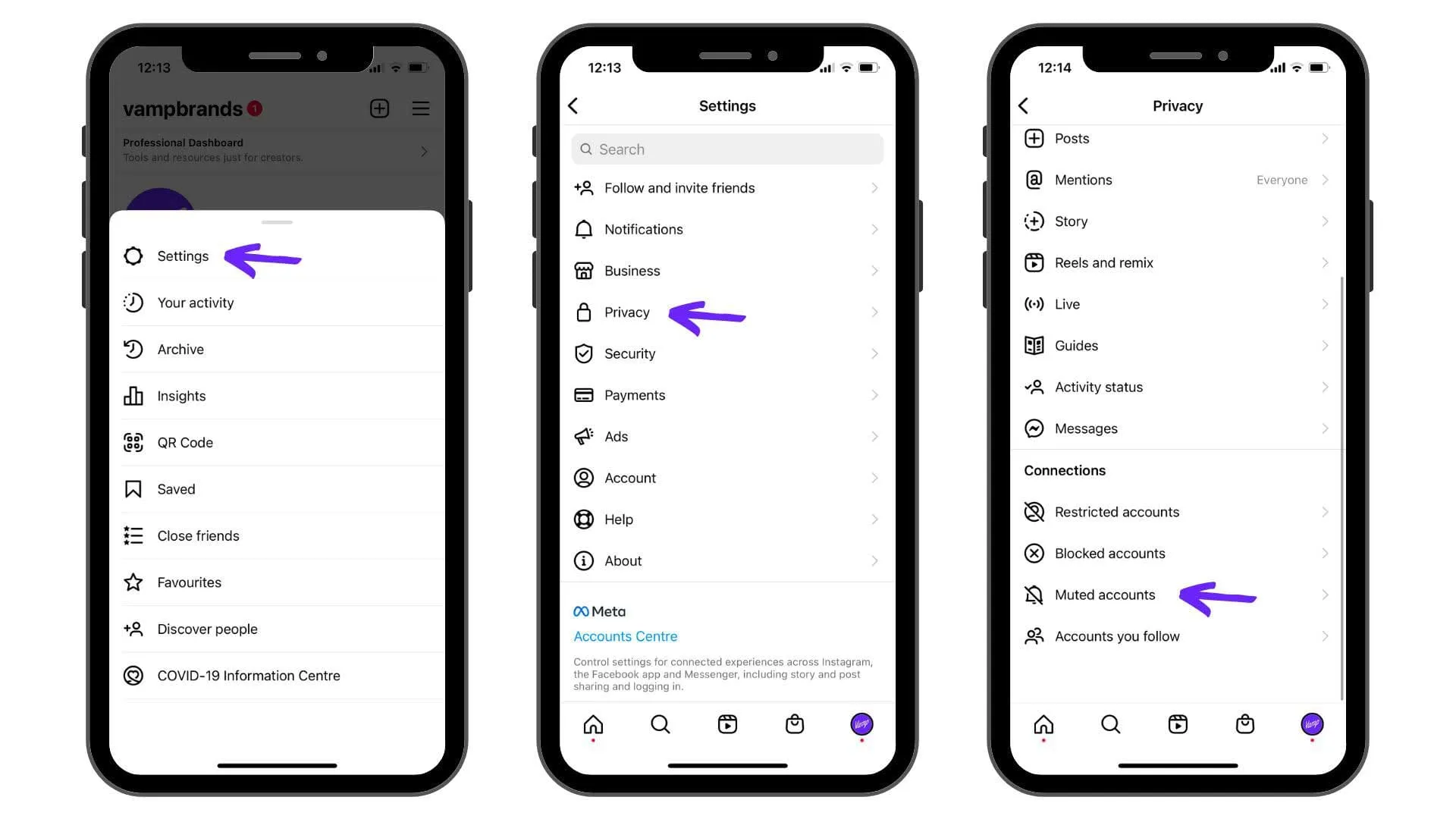
Where to find it: Open the profile > tap the three dots > Mute, or manage everyone you’ve muted under Settings and activity > Muted accounts.
6. Hide your Story from specific people
Have a follower who replies to every Story and makes you uncomfortable? You can hide your Story from individual profiles without them knowing. They simply stop seeing it.
Where to find it: Settings and activity > Story, live and location > Hide story and live from.
7. Share to Close Friends only
Want to show a more personal side, but only to people you trust? Close Friends lets you post Stories to a hand-picked list, ideal for protecting your privacy while keeping the connection with your genuine community. It’s also the safer way to share anything location-revealing without broadcasting your whereabouts to thousands.
Where to find it: Settings and activity > Close Friends, or tap Close Friends when sharing a Story.
8. Report harmful content
If you see content that breaks Instagram’s community guidelines, report it. Reporting helps the platform filter out dangerous and offensive content, which protects the wider community. Afterwards Instagram gives you the option to block or restrict whoever posted it, so it never reaches you again.
Where to find it: On the post, tap the three dots > Report > choose your reason.
9. Comment warnings for would-be trolls
When someone is about to post a comment Instagram detects as potentially offensive or harmful, a warning prompts them to reconsider and reminds them they can be removed for posting it. There’s nothing to switch on. Instagram applies this automatically to comments left on your posts, adding friction before abuse is even sent.
10. Control who can tag and mention you
Don’t want anyone on Instagram tagging or mentioning you at will? You can restrict tags and mentions to people you follow, or switch the ability off entirely.
Where to find it: Settings and activity > Tags and mentions > set who can tag you and who can @mention you.
11. Content advisory warnings
Instagram adds warnings when users search for harmful content that has slipped past its guidelines. Search for self-injury content, for example, and Instagram surfaces expert-backed resources encouraging the person to seek help instead. It runs automatically, there’s nothing to turn on, and it quietly reduces the reach of the most dangerous material.
12. Know the community guidelines
Community guidelines protect the whole platform and set the line on what is and isn’t acceptable. Content that crosses it can be removed instantly, and repeat offenders can have their accounts disabled. The guidelines also cap how many comments, likes and follows an account can fire off in a window, a deliberate brake on bot and troll accounts.
Read Instagram’s community guidelines.
13. Block accounts
Blocking is the oldest tool in the kit, and still one of the best. Block someone and they lose all access to your account. To them it looks like you’ve quietly stepped away, while you carry on posting without worrying what they’ll comment or send.
Where to find it: Open their profile > tap the three dots > Block, or manage everyone under Settings and activity > Blocked accounts.
14. Switch to a private account when you need to
If you want to lock things down, Instagram lets you set your account to private, so only approved followers see and comment on your content.
The trade-off matters for creators: most of you stay public to drive growth and secure brand collaborations, and switching to private affects your insights. But it’s a valid temporary measure. Plenty of creators go private to monitor and limit a wave of abuse, then return to public once the negative engagement subsides.
Where to find it: Settings and activity > Account privacy > toggle on Private account.
How we see it
Instagram has genuinely raised its game on safety, and that matters, because for a creator, going dark isn’t a real option. Your reach is your livelihood: it’s what brings brands to your inbox and audiences to your work.
So the job isn’t to disappear. It’s to control access. Knowing these features cold means you can stay visible and keep building, while deciding exactly who gets to reach you and who doesn’t. That control is part of operating like a professional, the same instinct that turns a personal account into a durable creator business.
At Vamp, we work with creators inside brand programmes where that professionalism is the whole point: a safe, sustainable presence is what makes influence performable over the long term, not just for a single post.
FAQs
What’s the fastest way to stop a troll on Instagram without them knowing?
Restrict them. Their comments become visible only to them, they can’t see when you’re active or when you’ve read their DMs, and they’re never notified, so the abuse stops without provoking an escalation.
What’s the difference between Restrict and Limits?
Restrict targets one specific account. Limits is built for volume. It temporarily hides comments and DMs from non-followers and recent followers, which is exactly who shows up during a coordinated pile-on.
Should creators go private to deal with trolls?
Only as a temporary measure. A private account caps growth and affects your insights, so most creators stay public and lean on Hidden Words, Limits, Restrict and blocking instead, going private briefly only to ride out an intense wave of abuse.
Where do I report serious abuse on Instagram?
Report the specific post or account directly (three dots > Report), and for behaviour that crosses into threats or harassment, document it and escalate through Instagram’s safety resources.
The takeaway
Instagram has stepped up its safety controls, and as a creator the real advantage is knowing them well enough to use them without a second thought. Master these 14 features and you keep the visibility your work depends on, on your terms, with you deciding who gets access.
Also on TikTok? Here are 9 TikTok features to keep you safe from online trolls.